

Ever since the Union Government approved apartment complexes and offices as private COVID-19 vaccination centres (PCVCs), a few large residential societies have conducted their own vaccination drives.
These decentralised vaccination drives at gated communities are playing an important role in improving access to vaccines, successfully vaccinating people at scale, reducing the burden on hospitals as well as mitigating the risk of overcrowding and the consequent exposure to infection.
Table of contents
1. Before the vaccination drive
2. Partnerships and approvals
3. Arrangements to be made at the society
4. Inviting registrations and collecting payments
5. Arranging amenities & infrastructure
6. On the vaccination day
7. How PEBL City utilised MyGate to successfully vaccinate 2,000+ residents
Apartments, being places of high population densities, have witnessed a large number of cases during the second wave. It is for this very reason, that vaccinating people in situ, is a good way to reduce the risk of infection within the society.
PEBL City in Hyderabad is a 2,000-unit apartment community that recently conducted a vaccination drive on its premises. Over 2 days, close to 2,500 people were administered Covishield in partnership with city-based Aster Prime Hospital. This makes it the first gated community to carry out a private vaccination drive at this scale.
We spoke to PEBL City RWA President, Mr. Chandramohan, regarding the SOP for conducting a vaccination drive within a gated community.
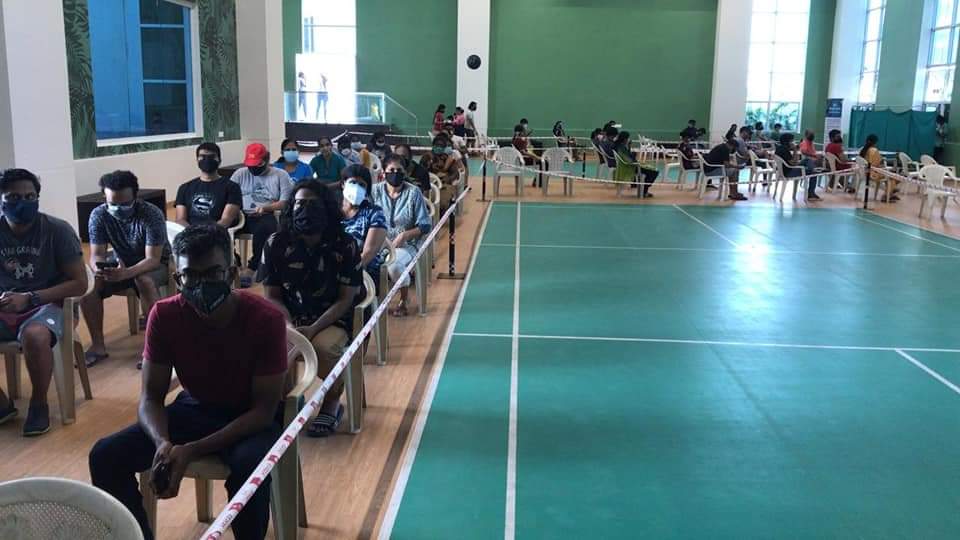
Before the vaccination drive
Partnerships and approvals
- Approach the hospitals nearest to you with a request for organising a vaccine drive in your community. Check for availability of dates, vaccines, MOQs, and any arrangements to be made by the society or approvals to be obtained
- Payment of an advance to the hospital for the vaccinations booked
- Sign a Memorandum of Understanding (MoU) with the hospital partner, mentioning vaccination rates and numbers
- Get the necessary approval as a PCVC from the District Medical and Health authorities
- Alternatively, the hospital partner manages the government approvals
- Organise a site visit and inspection by the health department officials, if needed
- Arrange for a training session for RWA members and volunteers, if needed
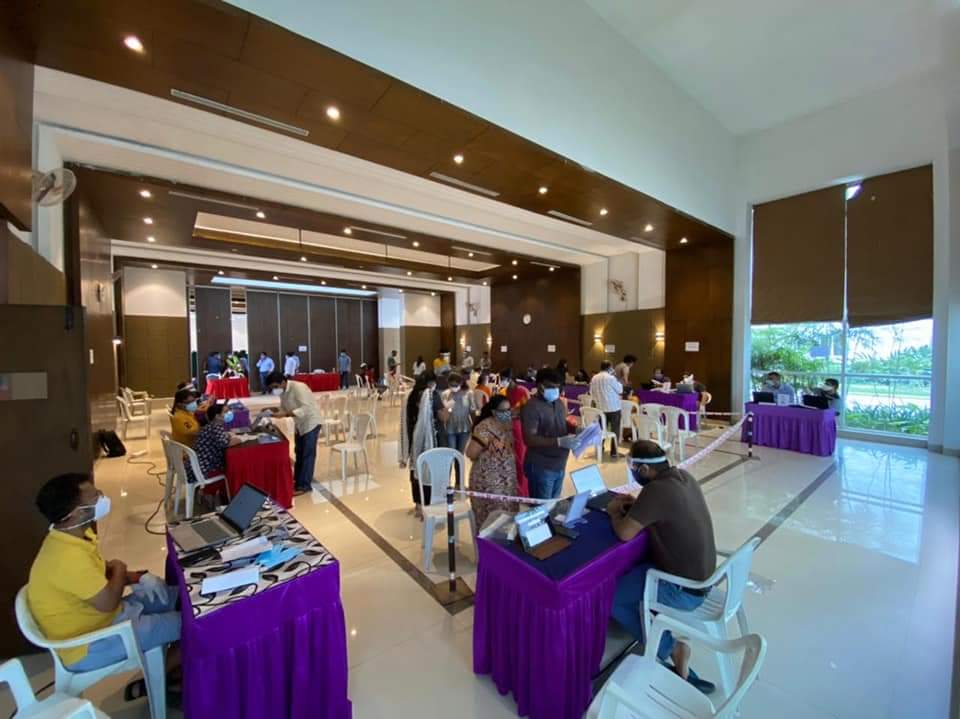
Arrangements to be made at the society
Inviting registrations and collecting payments
- Assess residents’ interest in getting vaccinated and estimate numbers based on age. This information is to be passed on to the hospital
- Make sure all interested residents register themselves on the CoWin app/website
- Collect payments in order to pay the advance amount to the hospital
- Allocate time slots based on floors or blocks. This can be managed based on the number of people to be vaccinated
Arranging amenities & infrastructure
- Identify a suitable, well-ventilated location for organising the vaccination drive. Apartments that have amenities such as clubhouse, tennis courts, gym etc can designate these areas. Other areas such as basements and car parks can also be used
- In all, you will need to have separate areas for setting up:
- A registration counter with 1.5ft distance between desks
- Pre and post vaccination waiting area with defined social distance and not more than 50 people at a time
- Designated vaccination area
- AEFI (Adverse events following immunisation) Room with two beds, crash cart (to manage/ stabilise any kind of immediate reaction observed post vaccination)
- Make arrangements for chairs, beds, oxygen concentrator and cylinder and first aid kit
- Organise a team of volunteers to assist with the registration, crowd control, post vaccination verification etc
- Organise staff to sanitise the rooms between sessions
- An ambulance and medical staff – provided by the hospital
- Communicate to residents the time slots and location of the drive, as well as information about all the documents to be carried (Aadhaar card or other government-issued ID, phone etc.)
- If payment is to be made on-the-spot, mention the various modes accepted
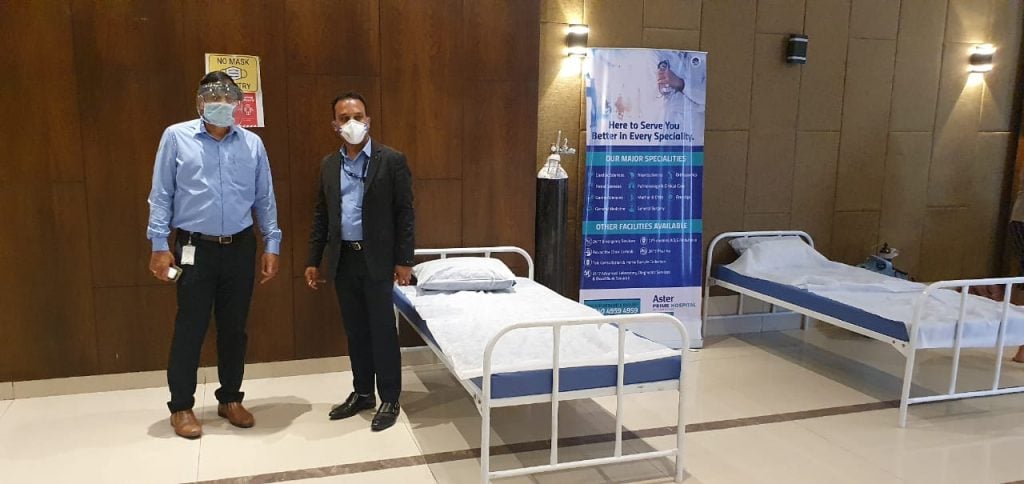
On the vaccination day
“The most time-consuming task during the drive is not the vaccination itself, which takes a few seconds and is managed by hospital staff. CoWin registration takes up the most time, says Mr. Chandramohan, as not everybody understands its nuances or books slots in advance.
How PEBL City utilised MyGate to successfully vaccinate 2,000+ residents
Getting estimates
One month before the actual vaccination drive, the RWA conducted a test run using the Amenities Booking feature on the MyGate app. Says Mr. Chandramohan, “At that time the vaccine wasn’t available but we created free slots on the app so that we could know how many residents were interested.” They received around 2,000 bookings, helping them estimate that the approximate number of vaccinations to be procured. It also worked as a dry run so things could run smoothly on D-Day.
Booking
Amenities like the clubhouse, gym and badminton court were converted into vaccination centres. They were marked as paid amenities on the MyGate app. Time slots for each vaccination session were allocated and bookings were made available through the app.
Payments
“Every hospital requires a paid advance for administering the vaccines. “Using the various payment options on the MyGate app, PEBL City was able to collect the required amount from residents based on the number of slots booked. This allowed quick collections, helped the society avoid cash payments and enabled prompt payment to the hospital within a day of collection.
Expanding vaccination access
“Initially, we had kept a cap of 4 vaccines per flat but then we realised that we would also need to vaccinate the close relatives and household staff such as cooks, help and drivers.” So, an additional 2 slots per household were opened up on the MyGate app. This helped the society vaccinate a larger number of people, including those who did not have access to the CoWin app.
Communication
PEBL City RWA used MyGate’s Notice Board feature to send timely communication to residents regarding various aspects of the vaccination process, including how to register on the CoWin site, documents to be carried on vaccination day, protocol to be followed etc.
Cooperative Housing SocietyHousing society apartments have hundreds of apartments and just as many monthly payments to process, not to mention additional funds received for emergency situations. Other than that, apartments often see a change in residency as the homeowners often rent their property out to tenants. It becomes essential for Managing Committee to track the following admin and finance activities:
Admin and Finance activities to track in housing society
- Track the pending dues from residents
- Consolidate received payments
- Maintain the logs and ownership records of payments made by landlords and tenants
- Charge penalties to defaulters
- Create an annual revenue and expenses report based on payments made and received throughout the year for the AGM
Transparent and ready-made accounting charts are essential to generate trust in residents, enable timely payments, and go back to archives to resolve any mismanagement of finances. Manual entries are only restricted to a minimum as Mygate can automate current transactions while keeping immaculate records of past transactions.
Features of Mygate society management and ERP
Here’s how Mygate society management and ERP suite can provide spot-on solutions to financial data management and logs:
1. Chart of accounts
You can create a chart of different accounting hierarchical sections such as general ledgers, auto reconciliation, app dues statement, arrears, online payments intimation, all with the aim of accurate bookkeeping so that every transaction made and received remains transparent.
2. List of defaulters/ dues reports
This section lists all the overdue payments with the names of defaulters along with the duration of society-wide pending dues. It makes it easier for Admin to shoot SMS/email alerts accordingly.
3. Collection history
Admin can get detailed reports of landlords and tenants as well as historical logs of every payment made by them with dates, time, acknowledgment reports, and skipped payments or unpaid components on itemized bills. This feature is particularly useful when there are disputes regarding the payment or if the ownership of homes changes and the Admin needs to clear unpaid bills.
4. Advance collection
You can get a report on any advance payments made by residents, another handy feature that helps you track the history of payments received to create error-free billing.
5. Advance, dues with security deposit report records
You don’t have to manually perform balance reports. MyGate offers a consolidated report on dues, advance, and security deposit received by each apartment sorted according to all flats, towers, and filtered period-wise.
This function enables you to look back at the amount of security deposit to be returned after the tenant moves out while also balancing any arrears or advance payments on the tenant’s side.
6. Income/expense and trial balance sheet
Mygate accounting features can pull up all payment histories so that the Admin can avail ready-made reports with periodic graphical analysis for an overall review and access trial balance details with generated income and other provisions/calculations. The updated trial balance is also reflected in the same section. To make things even easier, users can get balance information of actual balance in Schedule VI and N Format.
7. History of daily expenses
A separate log of daily cash expenses is available for download, number crunching, or perusal, including receipts and JV. It helps Admin to figure out the type of expenses and their patterns.
8. Charging fines
In the event that you need to fine defaulters, Mygate allows for different combinations and permutations setting penalties such as:
- Rate-wise
- Amount-wise
- Constant rate
- Percentage of overdue
- Custom settings
These can be tracked in penalty logs in order to link them to final accounting statements.
9. Logs of recurring invoices
You can customise the invoices by selecting a format for recurring invoices. This ensures that you can go back and check previous payments made by all residents easily. All reports can be uploaded and downloaded as well.
10. Tracking security deposits
Any payments made for using amenities and general security deposits can be archived and retrieved for adjusting the accounts.
11. Debit/credit/arrears
Users can pull up logs to keep a record of credit notes inside the reports and include consolidated arrears as well as bifurcated arrears as per individual accounts.
12. Track online payments
Admin can check all the payments received online through wallets, mobile banking, etc. in a way that it also accommodates historical logs of payments from each apartment.
Functioning of Mygate’s society ERP solution
1. How to create a chart of accounts
- Log in to dashboard.mygate.com
- Click on the Accounts icon present on the left-hand side of the screen
- Click on Chart of Accounts
- Click on ‘Create Account’ and enter the necessary fields like name and subcategories
2. How to create a list of defaulters/ dues reports
- Log in to dashboard.mygate.com
- Click on the Financial reports icon present on the left-hand side of the screen
- Click on Dues and Advance collection
- Now click on Dues Collection
- Provide the date and other required filters
3. How to get a collection history report
- Log in to dashboard.mygate.com
- Click on the Financial reports icon present on the left-hand side of the screen
- Click on Dues and Advance collection
- Now click on Dues Collection
- Provide the date and other required filters
4. How to get advance collection report
- Log in to dashboard.mygate.com
- Click on the Financial reports icon present on the left-hand side of the screen
- Click on Dues and Advance collection
- Now click on the Advance collection
- Provide the date and other required filters
5. How to get advance collection report
- Log in to dashboard.mygate.com
- Click on the Financial reports icon present on the left-hand side of the screen
- Click on Dues and Advance collection
- Now click on Security Deposit
- Provide the date and other required filters
6. How to access the Income/Expense sheet
- Log in to dashboard.mygate.com
- Click on the Financial reports icon present on the left-hand side of the screen
- Click on Final Account
- Now click on Income/expense
- Provide the period for which you need the sheet
7. How to get the Trial Balance Report
- Log in to dashboard.mygate.com
- Click on the Financial reports icon present on the left-hand side of the screen
- Click on Final Account
- Now click on Trial balance
- Provide the period for which you want the Trial Balance Report
8. How to get the History of Daily Expenses
- Log in to dashboard.mygate.com
- Click on the Financial reports icon present on the left-hand side of the screen
- Click on Expense
- Provide the period for which you want the Expense history
9. How to add a penalty to an Invoice
- Log in to dashboard.mygate.com
- Click on the Account icon present on the left-hand side of the screen
- Click on Invoices
- Select Member Invoices
- Click on Create/Edit Invoice template
- Select from the dropdown Fine setting
10. How to get Logs of recurring invoices
- Log in to dashboard.mygate.com
- Click on the Account icon present on the left-hand side of the screen
- Click on Invoices
- Select Invoice History and click on Group generated charges
11. How to Track Security Deposits
- Log in to dashboard.mygate.com
- Click on the Account icon present on the left-hand side of the screen
- Select Dues and Receipts
- Click on dues
- Now select the house and click on ”Show Dues”
- Click on Statement and get the Security Deposit statement
12. How to get a Credit note
- Log in to dashboard.mygate.com
- Click on the Account icon present on the left-hand side of the screen
- Select Dues and Receipts
- Click on Credit Note
13. Track online payments
- Log in to dashboard.mygate.com
- Click on the Financial reports icon present on the left-hand side of the screen
- Click on Dues and Advance collection
- Now click on Dues Collection
- Select Online and click on View
Mygate also enables comprehensive accounting with options to view and pay invoices, receipts, overdue, security deposit, and advance in-app so admin can do a quick check to create reports or get members to pay dues immediately.
Managing Committee members of housing society have to regularly deal with a number of external vendors from whom they purchase services and products for the society/apartment.
Some of these are:
- Water tanker providers
- Waste management equipment dealers
- Stationary providers
- Plumbing, electricity, repairmen services, etc.
It’s important to manage these tasks efficiently so that services necessary for society don’t get delayed and vendors don’t keep knocking on the door for payment.
Mygate offers an easy-to-use ‘Apartment/society Management’ feature that facilitates a seamless and transparent workflow for admin to raise a purchase request to vendors, receive and store vendor quotes and details and request the Managing Committee to approve the purchase. This feature is part of the Accounting Suite that comes embedded in Mygate, the Enterprise Resource Planning app for housing societies.
It simplifies every administrative need of a housing society by digitizing apartments, staff, vendors, amenities, and security management in a few steps so that all operations can be automated with minimal manual intervention or labour.
Vendor management in housing society with Mygate
MyGate has a simple and logical workflow to manage vendor service approvals, invoicing, and payments. Here’s how it works.
MC can navigate the dashboard in the following steps:
Here’s how you can create a vendor on the Mygate app
- Login to dashboard.mygate.com
- Click on People Hub icon present on the left-hand side of the screen
- Click on Vendors
- Now click on Create Vendor and fill in the necessary details
Here’s how you can raise a purchase request on Mygate app
- Login to dashboard.mygate.com
- Click on Accounts icon present on the left-hand side of the screen
- Click on Purchasing
- Select Purchases and then click on Create Purchase Request
Here’s how you can raise a Request for Quotation
- Login to dashboard.mygate.com
- Click on Accounts icon present on the left-hand side of the screen
- Click on Purchasing
- Select Purchases and then click on Create Request for Quotation
(OR) - Click on Create RFQ from the approved purchase request view
Here’s how you can raise a Purchase order
- Login to dashboard.mygate.com
- Click on Accounts icon present on the left-hand side of the screen
- Click on Purchasing
- Select Purchases and then click on Create Purchase order
(OR) - A purchase order can be created directly from the Purchase Request or RFQ
Once the purchased product is delivered, you can create the Material Receipts Note (MRN) to have transparency in the purchases
Here’s how you can collect delivery
- Login to dashboard.mygate.com
- Click on the Accounts icon present on the left-hand side of the screen
- Click on Purchasing
- Select Purchases and then click on Create Purchase order – All the pending deliveries will be listed
- Now click on collect delivery for those orders where we need to create the MRN
- Fill in the details required to create the MRN such as delivery date, collected by, received quantity, rejected quantity, etc
Here’s how you can book an expens
Expense booking can be done either individually or by clicking on the ‘+’ on the purchase order.
A
- log in to dashboard.mygate.com
- Click on the Accounts icon present on the left-hand side of the screen
- Click on Purchasing
- Select Purchases and then click on the ‘+’ symbol
B
- Login to dashboard.mygate.com
- Click on the Accounts icon present on the left-hand side of the screen
- Click on Purchasing
- Select Purchases and then click on Book expenses
MyGate has launched a new customer support channel, ‘Chat Support’ to solve your queries quickly and efficiently.
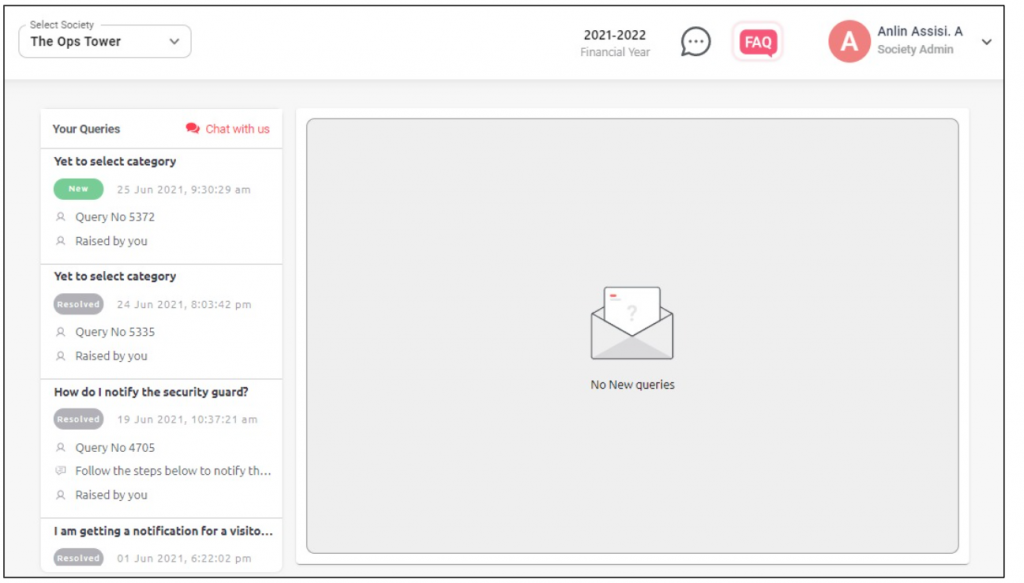
(A) Steps to use Chat Support on the society dashboard
- Login to the admin dashboard
- Click on the chat icon next to the FAQs section
- Select ‘Chat with us’ and start typing your queries or choose the module
- Click on ‘Connect now’ to start live chat with our product specialist
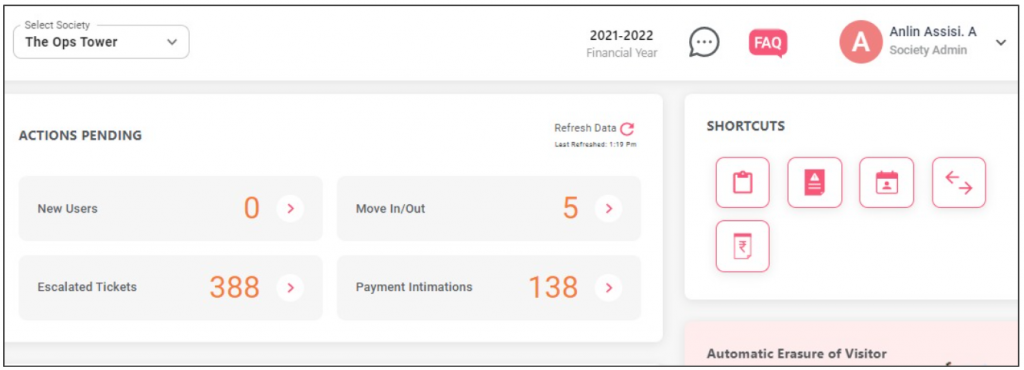
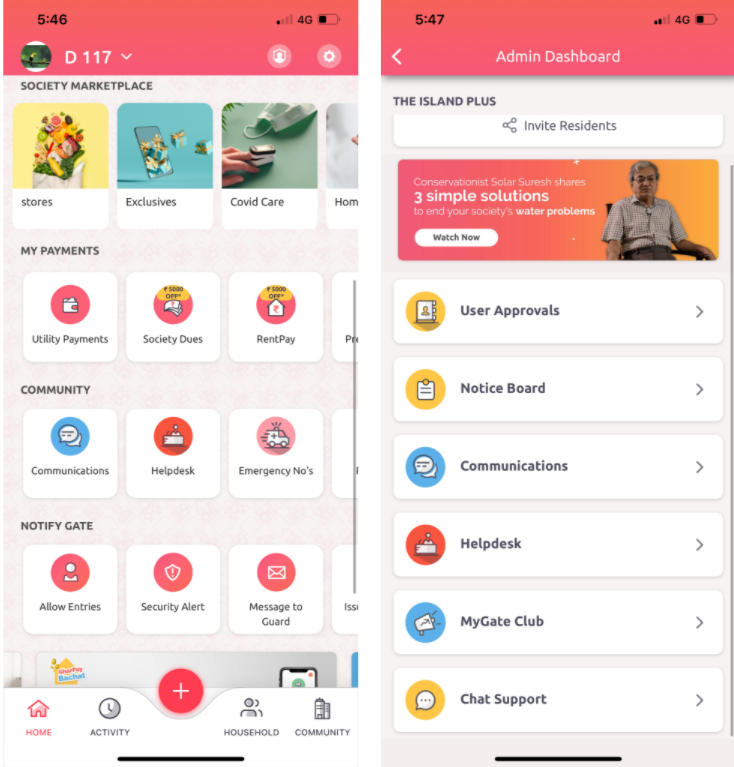
(B) Steps to use Chat Support on the app
- Open the MyGate App
- Click on the Admin icon on the top right side
- Select ‘Chat Support’ and start typing your queries or choose the module
- Click on ‘Connect now’ to start live chat with our product experts
For further assistance, please contact your MyGate Relationship Manager
What’s new on MyGateA housing society’s most common and annoying problem is late payments of maintenance bills and other repair restoration charges. On the flip side, there are always those disciplined residents who pay their dues regularly and never have to be sent reminders.
MC/RWA must deploy an automated workflow for incentivising residents who pay on time as well as strictly fine those who violate the rules repeatedly.
This is a great way to regulate the monthly maintenance payments by rewarding those that don’t default and fining those who default. Ultimately, payments flow in at the right time as residents realise that they’re being irresponsible by not paying on time.
Here’s how MyGate solves this dilemma.
How to grant Incentives
Use multiple charge types – MyGate has a feature that allows for various monthly maintenance calculations based on the floor area or even keeps a flat rate if needed in any other case.
Group/itemized billing – Moreover, you can sort out different bill types with consecutive line items in a single invoice with different GST rates when you’re billing the residents.
Targeted billing – Admin can create invoices for towers, tenants, owners, flat type, etc., and automate the billing process by scheduling the invoice to be sent through the app based on the predetermined time and period.
MC can configure the workflow to provide discounts to the residents who’ve been paying their dues on time. For instance, once the regular bill is generated, you can offer a discount on certain components in line items or just a flat-out discount.
Advance Account – At times, residents may pay some amount in advance, in which case, you can still provide them a discount on the monthly maintenance bill.
Admin can transfer excess amounts paid by a resident to a separate advance account with an option to pay from the advance account to settle future dues, which is an auto settle feature from the advance account category.
Arrears– Another way to incentivize the residents is to adjust the arrears. Arrears get added to the consolidated arrears as well as bifurcated arrears in the total calculation.
Partial Payment Options – Sometimes residents who’ve been paying regularly may be pardoned by giving them an option to make a partial payment at some point. They can make partial payments against dues through a configurable admin setting.
Credit Note and Discount – One more feature within accounting allows the admin to issue a credit or debit note on the monthly invoice on past invoices and issue a discount/credit on the invoices to be issued.
How to charge penalties from defaulters
MC can first decide the number of times a resident can default in their payments and charge the penalty agreed upon in a consensus. MyGate makes it easy to track defaulters and repeat offenders. Here’s how:
Dues reports with defaulters – You can create the list of defaulters along with the names, apartment details, amount, duration, collective dues, dues by particular bills, dues by particular account head.
Auto dues report – As soon as the residents make a payment, the system records it and generates a receipt, whether it’s an advance or online payment. This feature auto reconciles all the payments so you can readily know who the defaulters are at the end of the month.
Admin can review the list every month and charge fines accordingly. Here’s how:
Fine Options – MyGate allows the admin to automate the penalty by offering multiple options for fine settings like rate-wise, amount-wise, or custom settings. Rates can be kept constant or calculated as per overdue percentage.
It’s essential to set stringent protocols for residents to follow so that late payments don’t halt the functioning of society and cause delayed payments to vendors and service providers.
How to use multiple charge type
1. Login to dashboard.mygate.com
2. Click on the Accounts icon present on the left-hand side of the screen
3. Click on Invoicing
4. Select Member Invoices and click on Create invoice template
5. Now click on Charge Type
How to create Group/itemized billing
1. Login to dashboard.mygate.com
2. Click on the Accounts icon present on the left-hand side of the screen
3. Click on Invoicing
4. Select Member Invoices and click on Create invoice template
5. Now click on Charge Item/Add Item
How to create Targeted billing
1. Login to dashboard.mygate.com
2. Click on the Accounts icon present on the left-hand side of the screen
3. Click on Invoicing
4. Select Member Invoices and click on Create invoice template
5. Now click on Resident Type
How to use Advance Account
1. Login to dashboard.mygate.com
2. Click on the Accounts icon present on the left-hand side of the screen
3. Click on Invoicing
4. Select Member Invoices and click on Create invoice template
5. Now select from the drop-down Advance Ledger
How to create Arrears
1. Login to dashboard.mygate.com
2. Click on the Accounts icon present on the left-hand side of the screen
3. Click on Invoicing
4. Select Member Invoices and click on Create invoice template
5. Now select Include previous arrears
Partial Payment Options – Credit Note and Discount
How to add Credit Note
1. Login to dashboard.mygate.com
2. Click on the Accounts icon present on the left-hand side of the screen
3. Select Dues and Receipts
4. Click on dues and select a house
5. Now click on show dues
6. Go to options and click on Credit notes
How to view the credits applied
1. Login to dashboard.mygate
.com
2. Click on the Accounts icon present on the left-hand side of the screen
3. Click on Dues and Receipts
4. Now select Credit Note
How to create Dues reports of society maintenance defaulters
1. Login to dashboard.mygate.com
2. Click on the Financial reports icon present on the left-hand side of the screen
3. Click on Dues and Advance collection and select Dues
How to create Auto dues reminder
1. Login to dashboard.mygate.com
2. Click on the Accounts icon present on the left-hand side of the screen
3. Click on Dues and Receipts
4. Now click on Dues and select Dues Reminder
5. Set the desired date for generating the reminders
Fine Options
The addition of the Fine method(Creation of penalty rule) is from the backend.
How to add a penalty to an Invoice
1. Login to dashboard.mygate.com
2. Click on the Accounts icon present on the left-hand side of the screen
3. Click on Invoicing
4. Select Member Invoices
5. Click on Create/Edit Invoice template
6. Select from the dropdown Fine setting
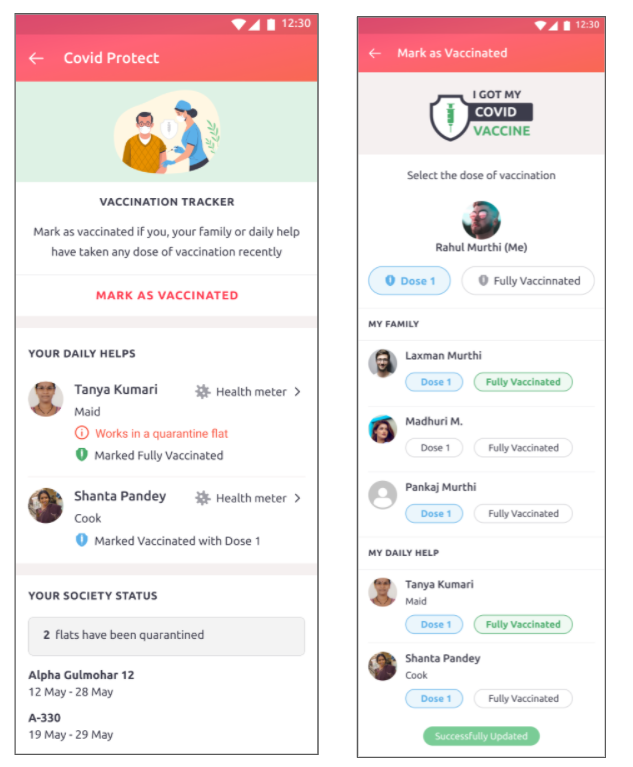
The pandemic is far from done. Not only do our health systems remain under pressure, but authorities have also warned of a possible third wave. Local authorities are also requesting RWAs to share information on their society’s vaccination status. To assist our societies to combat the virus, we had introduced the Vaccination Tracker. For societies to be better prepared, residents can update their & their daily help’s status on the app. Admins can use this feature to view the vaccination status of the entire community.
Benefits of Vaccination Tracker
- Get an overview of the society’s vaccination status
- Accurately estimate demand during in-society vaccination drive
- Plan the opening of common areas and amenities
- Urge residents to get vaccinated before the 3rd wave
Please forward the following message to your society residents:
Dear Residents,
Please mark your vaccination status, as well as the status of your family members and daily help by visiting the Covid Protect section of the Mygate app. Help us get an overview of the society’s vaccination status so we can work with the local authorities (as needed), accurately estimate demands during in-society vaccination, and be better prepared for the possible 3rd wave.
Note: Only aggregate information for the entire society will be visible to other residents.
Click here.
How you can check the vaccination status of your society
1. Login to dashboard.mygate.com
2. Click on the People Hub icon present on the left-hand side of the screen
3. Click on Residents/Service Providers
4. Download the Resident list and the Service providers list to view the society’s vaccination status
How residents can mark their vaccination status
1. Click on the ‘Covid Protect’ section
2. Click on ‘Mark as Vaccinated’
3. Residents can now select either ‘Dose 1’ or ‘Fully Vaccinated’
4. The vaccination status is automatically saved against the user
5. Resident can also mark the vaccination status for family members, daily help & service providers tagged to their household
Contact your management committee or Mygate relationship manager for further assistance.