

Managing Committee members of housing society have to regularly deal with a number of external vendors from whom they purchase services and products for the society/apartment.
Some of these are:
- Water tanker providers
- Waste management equipment dealers
- Stationary providers
- Plumbing, electricity, repairmen services, etc.
It’s important to manage these tasks efficiently so that services necessary for society don’t get delayed and vendors don’t keep knocking on the door for payment.
Mygate offers an easy-to-use ‘Apartment/society Management’ feature that facilitates a seamless and transparent workflow for admin to raise a purchase request to vendors, receive and store vendor quotes and details and request the Managing Committee to approve the purchase. This feature is part of the Accounting Suite that comes embedded in Mygate, the Enterprise Resource Planning app for housing societies.
It simplifies every administrative need of a housing society by digitizing apartments, staff, vendors, amenities, and security management in a few steps so that all operations can be automated with minimal manual intervention or labour.
Vendor management in housing society with Mygate
MyGate has a simple and logical workflow to manage vendor service approvals, invoicing, and payments. Here’s how it works.
MC can navigate the dashboard in the following steps:
Here’s how you can create a vendor on the Mygate app
- Login to dashboard.mygate.com
- Click on People Hub icon present on the left-hand side of the screen
- Click on Vendors
- Now click on Create Vendor and fill in the necessary details
Here’s how you can raise a purchase request on Mygate app
- Login to dashboard.mygate.com
- Click on Accounts icon present on the left-hand side of the screen
- Click on Purchasing
- Select Purchases and then click on Create Purchase Request
Here’s how you can raise a Request for Quotation
- Login to dashboard.mygate.com
- Click on Accounts icon present on the left-hand side of the screen
- Click on Purchasing
- Select Purchases and then click on Create Request for Quotation
(OR) - Click on Create RFQ from the approved purchase request view
Here’s how you can raise a Purchase order
- Login to dashboard.mygate.com
- Click on Accounts icon present on the left-hand side of the screen
- Click on Purchasing
- Select Purchases and then click on Create Purchase order
(OR) - A purchase order can be created directly from the Purchase Request or RFQ
Once the purchased product is delivered, you can create the Material Receipts Note (MRN) to have transparency in the purchases
Here’s how you can collect delivery
- Login to dashboard.mygate.com
- Click on the Accounts icon present on the left-hand side of the screen
- Click on Purchasing
- Select Purchases and then click on Create Purchase order – All the pending deliveries will be listed
- Now click on collect delivery for those orders where we need to create the MRN
- Fill in the details required to create the MRN such as delivery date, collected by, received quantity, rejected quantity, etc
Here’s how you can book an expens
Expense booking can be done either individually or by clicking on the ‘+’ on the purchase order.
A
- log in to dashboard.mygate.com
- Click on the Accounts icon present on the left-hand side of the screen
- Click on Purchasing
- Select Purchases and then click on the ‘+’ symbol
B
- Login to dashboard.mygate.com
- Click on the Accounts icon present on the left-hand side of the screen
- Click on Purchasing
- Select Purchases and then click on Book expenses
MyGate has launched a new customer support channel, ‘Chat Support’ to solve your queries quickly and efficiently.
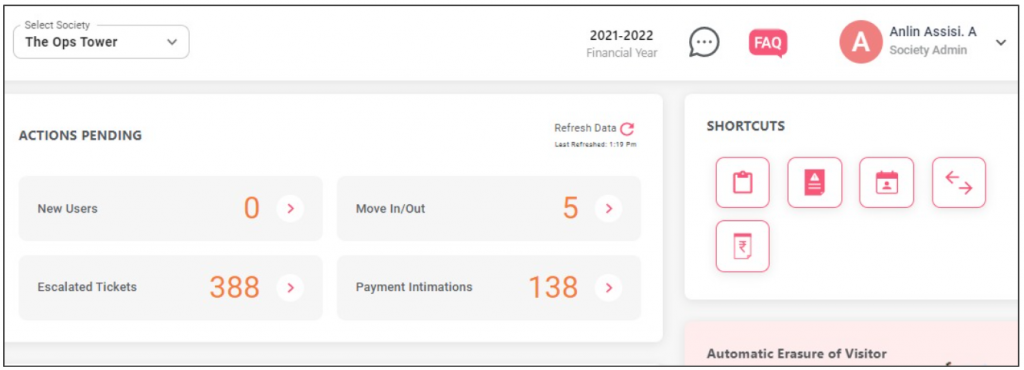
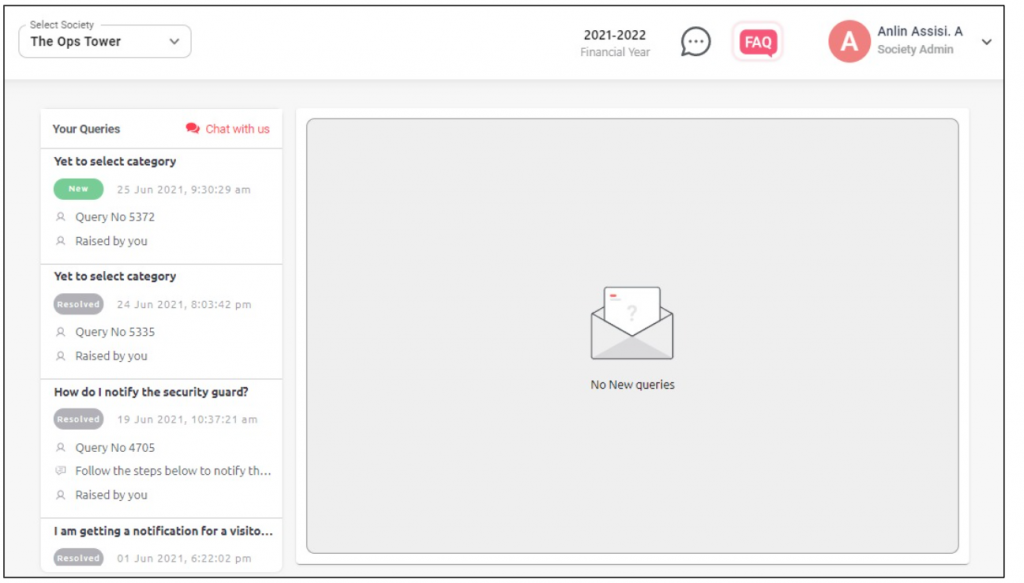
(A) Steps to use Chat Support on the society dashboard
- Login to the admin dashboard
- Click on the chat icon next to the FAQs section
- Select ‘Chat with us’ and start typing your queries or choose the module
- Click on ‘Connect now’ to start live chat with our product specialist
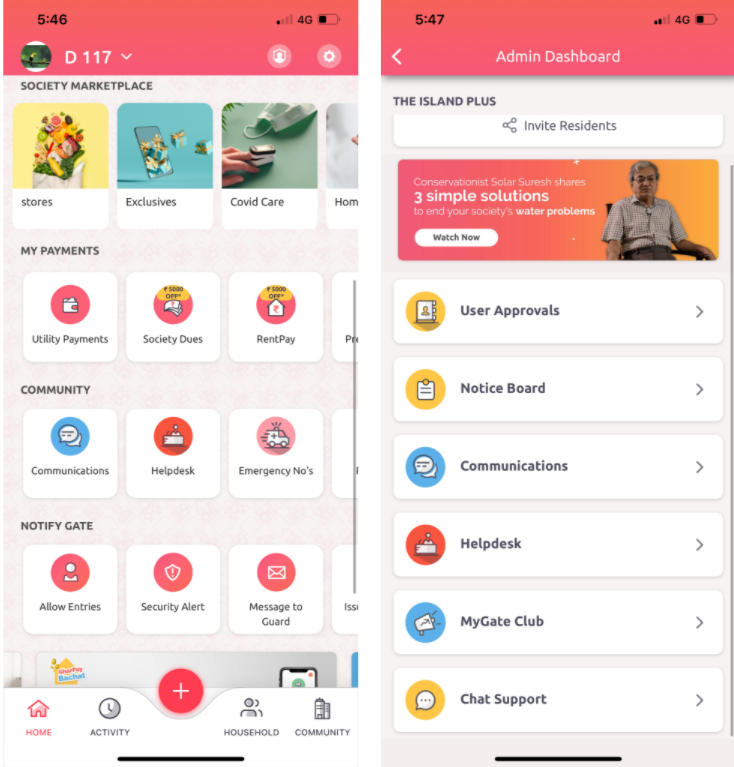
(B) Steps to use Chat Support on the app
- Open the MyGate App
- Click on the Admin icon on the top right side
- Select ‘Chat Support’ and start typing your queries or choose the module
- Click on ‘Connect now’ to start live chat with our product experts
For further assistance, please contact your MyGate Relationship Manager
What’s new on MyGateA housing society’s most common and annoying problem is late payments of maintenance bills and other repair restoration charges. On the flip side, there are always those disciplined residents who pay their dues regularly and never have to be sent reminders.
MC/RWA must deploy an automated workflow for incentivising residents who pay on time as well as strictly fine those who violate the rules repeatedly.
This is a great way to regulate the monthly maintenance payments by rewarding those that don’t default and fining those who default. Ultimately, payments flow in at the right time as residents realise that they’re being irresponsible by not paying on time.
Here’s how MyGate solves this dilemma.
How to grant Incentives
Use multiple charge types – MyGate has a feature that allows for various monthly maintenance calculations based on the floor area or even keeps a flat rate if needed in any other case.
Group/itemized billing – Moreover, you can sort out different bill types with consecutive line items in a single invoice with different GST rates when you’re billing the residents.
Targeted billing – Admin can create invoices for towers, tenants, owners, flat type, etc., and automate the billing process by scheduling the invoice to be sent through the app based on the predetermined time and period.
MC can configure the workflow to provide discounts to the residents who’ve been paying their dues on time. For instance, once the regular bill is generated, you can offer a discount on certain components in line items or just a flat-out discount.
Advance Account – At times, residents may pay some amount in advance, in which case, you can still provide them a discount on the monthly maintenance bill.
Admin can transfer excess amounts paid by a resident to a separate advance account with an option to pay from the advance account to settle future dues, which is an auto settle feature from the advance account category.
Arrears– Another way to incentivize the residents is to adjust the arrears. Arrears get added to the consolidated arrears as well as bifurcated arrears in the total calculation.
Partial Payment Options – Sometimes residents who’ve been paying regularly may be pardoned by giving them an option to make a partial payment at some point. They can make partial payments against dues through a configurable admin setting.
Credit Note and Discount – One more feature within accounting allows the admin to issue a credit or debit note on the monthly invoice on past invoices and issue a discount/credit on the invoices to be issued.
How to charge penalties from defaulters
MC can first decide the number of times a resident can default in their payments and charge the penalty agreed upon in a consensus. MyGate makes it easy to track defaulters and repeat offenders. Here’s how:
Dues reports with defaulters – You can create the list of defaulters along with the names, apartment details, amount, duration, collective dues, dues by particular bills, dues by particular account head.
Auto dues report – As soon as the residents make a payment, the system records it and generates a receipt, whether it’s an advance or online payment. This feature auto reconciles all the payments so you can readily know who the defaulters are at the end of the month.
Admin can review the list every month and charge fines accordingly. Here’s how:
Fine Options – MyGate allows the admin to automate the penalty by offering multiple options for fine settings like rate-wise, amount-wise, or custom settings. Rates can be kept constant or calculated as per overdue percentage.
It’s essential to set stringent protocols for residents to follow so that late payments don’t halt the functioning of society and cause delayed payments to vendors and service providers.
How to use multiple charge type
1. Login to dashboard.mygate.com
2. Click on the Accounts icon present on the left-hand side of the screen
3. Click on Invoicing
4. Select Member Invoices and click on Create invoice template
5. Now click on Charge Type
How to create Group/itemized billing
1. Login to dashboard.mygate.com
2. Click on the Accounts icon present on the left-hand side of the screen
3. Click on Invoicing
4. Select Member Invoices and click on Create invoice template
5. Now click on Charge Item/Add Item
How to create Targeted billing
1. Login to dashboard.mygate.com
2. Click on the Accounts icon present on the left-hand side of the screen
3. Click on Invoicing
4. Select Member Invoices and click on Create invoice template
5. Now click on Resident Type
How to use Advance Account
1. Login to dashboard.mygate.com
2. Click on the Accounts icon present on the left-hand side of the screen
3. Click on Invoicing
4. Select Member Invoices and click on Create invoice template
5. Now select from the drop-down Advance Ledger
How to create Arrears
1. Login to dashboard.mygate.com
2. Click on the Accounts icon present on the left-hand side of the screen
3. Click on Invoicing
4. Select Member Invoices and click on Create invoice template
5. Now select Include previous arrears
Partial Payment Options – Credit Note and Discount
How to add Credit Note
1. Login to dashboard.mygate.com
2. Click on the Accounts icon present on the left-hand side of the screen
3. Select Dues and Receipts
4. Click on dues and select a house
5. Now click on show dues
6. Go to options and click on Credit notes
How to view the credits applied
1. Login to dashboard.mygate
.com
2. Click on the Accounts icon present on the left-hand side of the screen
3. Click on Dues and Receipts
4. Now select Credit Note
How to create Dues reports of society maintenance defaulters
1. Login to dashboard.mygate.com
2. Click on the Financial reports icon present on the left-hand side of the screen
3. Click on Dues and Advance collection and select Dues
How to create Auto dues reminder
1. Login to dashboard.mygate.com
2. Click on the Accounts icon present on the left-hand side of the screen
3. Click on Dues and Receipts
4. Now click on Dues and select Dues Reminder
5. Set the desired date for generating the reminders
Fine Options
The addition of the Fine method(Creation of penalty rule) is from the backend.
How to add a penalty to an Invoice
1. Login to dashboard.mygate.com
2. Click on the Accounts icon present on the left-hand side of the screen
3. Click on Invoicing
4. Select Member Invoices
5. Click on Create/Edit Invoice template
6. Select from the dropdown Fine setting
The pandemic is far from done. Not only do our health systems remain under pressure, but authorities have also warned of a possible third wave. Local authorities are also requesting RWAs to share information on their society’s vaccination status. To assist our societies to combat the virus, we had introduced the Vaccination Tracker. For societies to be better prepared, residents can update their & their daily help’s status on the app. Admins can use this feature to view the vaccination status of the entire community.
Benefits of Vaccination Tracker
- Get an overview of the society’s vaccination status
- Accurately estimate demand during in-society vaccination drive
- Plan the opening of common areas and amenities
- Urge residents to get vaccinated before the 3rd wave
Please forward the following message to your society residents:
Dear Residents,
Please mark your vaccination status, as well as the status of your family members and daily help by visiting the Covid Protect section of the Mygate app. Help us get an overview of the society’s vaccination status so we can work with the local authorities (as needed), accurately estimate demands during in-society vaccination, and be better prepared for the possible 3rd wave.
Note: Only aggregate information for the entire society will be visible to other residents.
Click here.
How you can check the vaccination status of your society
1. Login to dashboard.mygate.com
2. Click on the People Hub icon present on the left-hand side of the screen
3. Click on Residents/Service Providers
4. Download the Resident list and the Service providers list to view the society’s vaccination status
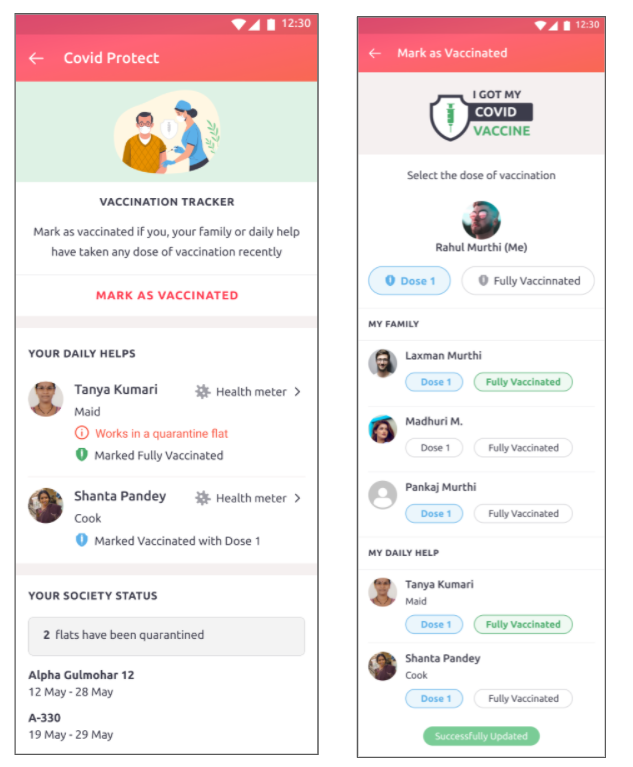
How residents can mark their vaccination status
1. Click on the ‘Covid Protect’ section
2. Click on ‘Mark as Vaccinated’
3. Residents can now select either ‘Dose 1’ or ‘Fully Vaccinated’
4. The vaccination status is automatically saved against the user
5. Resident can also mark the vaccination status for family members, daily help & service providers tagged to their household
Contact your management committee or Mygate relationship manager for further assistance.
The pandemic is a scary prospect for us all. But it’s much worse when you can’t even afford essential medicines, as is the case with the majority of our population.
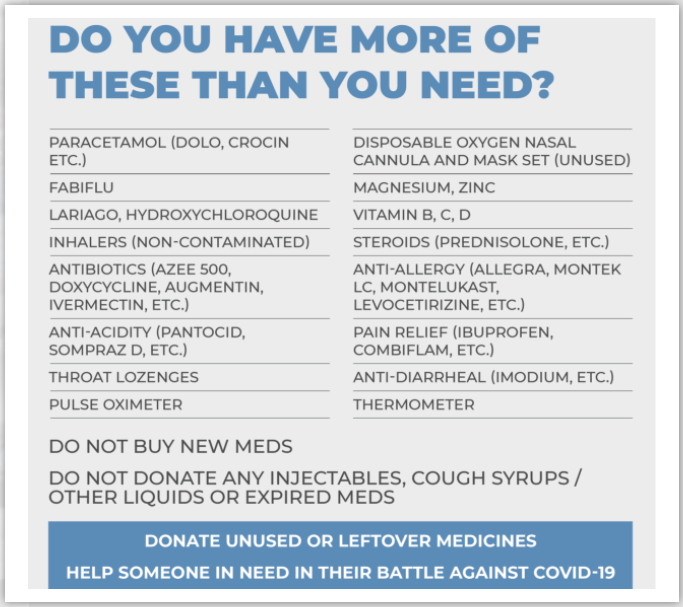
In the attempt to bridge this gap, MedsforMore is collecting unused, unexpired COVID-19 medicines (see list in image below) and making them available to the needy.
Should you wish to contribute to this initiative, do register with them as an ambassador — or simply make a donation.
About MedsforMore
MedsForMore (“MFM’) is a citizen level volunteering social initiative established only to facilitate collection of unused COVID-19 medicines only to be prescribed and distributed free of charge by its volunteering partners. MFM in no manner encourages anyone to purchase medicines and donate for its purposes. MFM is carrying out this activity without any financial consideration. MFM is in no manner intending to raise any funding, monetary donations through this website or any other means for the said purpose.
Society FocusAn Emergency Response Team may sound like an alien concept to implement in a housing society but its many versions are commonly known to us all. A neighborhood watch or a SWAT team, or in more recent times, an ERT of medical practitioners. These are the first-hand responders in times of trouble. Let’s explore further.
What is an Emergency Response Team?
Also known as an Incident Response Team, it’s a group of people who are appointed to solve crises, and respond to emergencies (in a calm and collected manner) with practical action plans. Such a team consists of members who are qualified and prepared to handle emergencies (volunteers or designated members).
Why is an ERT needed in a housing society?
A housing society faces emergencies quite frequently. Some examples are listed below:
- COVID-19 (or other medical) cases that can escalate quickly.
- Lack of essentials during continuous lockdowns or unavailability of specific medicines and daily needs.
- Incoming (forecasted or otherwise) natural calamities like flooding issues, storms, earthquakes, etc.
- Accidental fires or structural breakdown in the building.
- Failure of society assets like composting units, electric/smart meters, fire alarm systems, etc.
- Domestic or community conflict (in some cases, physical assault).
- Intruders, robbers, and vandals are causing damage to property and disturbing the privacy of residents.
- Mishandling of hazardous materials during maintenance and repair.
Any such incidents need to be handled with caution so as to prevent any physical, monetary, psychological, and emotional distress to the spirit of community living.
How to form an Emergency Response Team (ERT) in your housing society?
Step 1: Identify the categories of emergencies within the desired Incident Response Team and appoint points of contact for each.
Points of contact for:
- Medical/Covid-19 emergencies
- Domestic/internal conflicts
- Technical failure, equipment malfunction
- Natural calamities or accidents within the premises
- Elevators safety and malfunctioning with people trapped inside.
- Any other categories as per the needs of your housing society
Step 2: Select members based on needs and qualifications
Circulate a notice to form ERT among group chats and notice boards and announce that volunteers are welcome.
Usually, the responsible members who are willing to help will step forward. Alernatively, if you already know the members who would do a good job as a reliable point of contact, you can approach them directly after discussing it within the MC meeting. Use both approaches as you’d be able to appoint a secondary point of contact through willing volunteers as well.
What will be the responsibilities of the ERT?
After you’ve appointed the primary and secondary points of contact for each category, formulate their core responsibilities and the action plan needed for their roles.
Here’s a sample.
1. ERT points of contact in society for accidental fire and natural disasters should have:
- An action plan for evacuation
- Fire safety plan
- A drill practiced in advance
- A plan for securing vehicles and other property of the society.
- Train the security guard and maintenance staff in damage control.
2. Points of contact in society for internal conflicts, robbery, vandalism should:
- Be able to intervene immediately.
- Hear out all parties involved, devise a fair judgment, and impose it.
- Apprehend the perpetrators immediately and hand them over to the local authorities.
- Set up a neighborhood patrol if needed.
3. ERT points of contact in society for Medical/ Covid-related emergencies should be responsible for:
- Arranging for first aid and CPR, temporary solutions like bandaging wounds, PPE /isolation protocols.
- Providing a list of nearby health facilities and doctors on call.
- Distributing safety measures for children, elderly family members of the patient.
- Making medicines or supplements available.
4. Points of contact in society for equipment failure should:
- Maintain a list of all associated vendors and their contact information.
- Be trained in emergency lift rescue protocols (usually, the guard and facilities manager should be able to handle such scenarios).
- Solve minor technical glitches or get someone from within the society premises to help immediately.
Above are some examples. However, each point of contact can create their own action plans and acquire skill sets to implement them based on society’s requirements. A society can set aside funds for ERT activities or go ad hoc for funds if needed. Team members can be from the MC/RWA as well as regular members.
Common rules for ERT members
- Protect people first, the property later.
- Be available at all times to respond.
- Choose ERT members with specific skill sets (e.g. medical health professionals, engineers, people with necessary life experience who may be in managerial/leadership roles in their careers or experienced business owners.)
- They should be self-trained in their ERT roles with periodic retraining to maintenance staff and guards.
- Each ERT member should make their own checklist along with an action plan to stay on top when an emergency strikes.
- Firefighting/escape and drills and basic medical emergency, first aid skills should be taught mandatorily to all ERT members.
An Emergency Response Team should be able to act swiftly, think on their feet, and consider the good of the many above selfish motives.